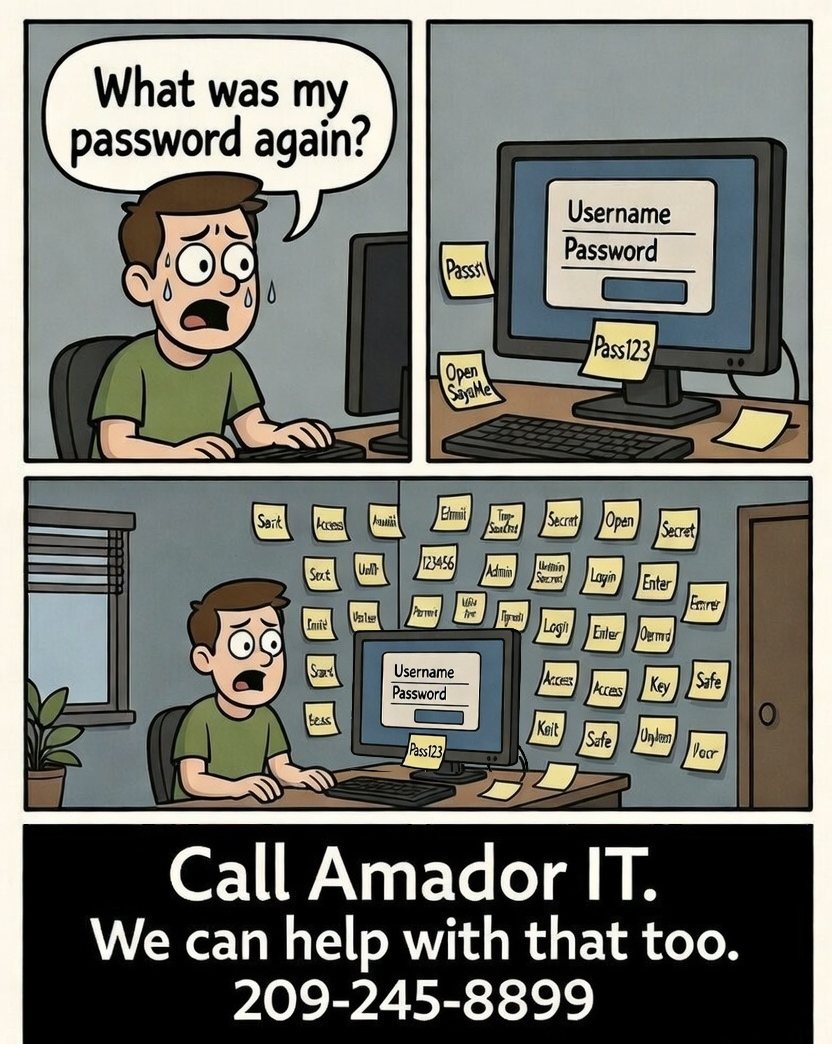
"What was my password again?" If you've ever stared at a login screen and drawn a complete blank, you're not alone. The average person has over 100 online accounts, and most of us deal with passwords the same way — sticky notes on the monitor, a notebook in the desk drawer, or just using "password123" for everything and hoping for the best.
None of those are great options. But here's the good news: there's a simple fix that takes about 10 minutes to set up and will save you hours of frustration for years to come.
The Problem with How Most People Handle Passwords
Let's be honest about the most common password strategies and why they don't work:
- Reusing the same password everywhere: If one site gets hacked (and they do, regularly), hackers try that same password on your email, bank, and everything else. One breach becomes ten.
- Sticky notes on your monitor: Anyone who walks by your desk — visitors, cleaning staff, even family — can see all your passwords. And if you work from home, that Zoom call might be broadcasting them to your coworkers.
- A notebook in the drawer: Better than sticky notes, but what happens when you lose the notebook? Or need a password when you're away from your desk?
- Simple passwords you can remember: If you can easily remember it, a hacker can easily guess it. "Fluffy2024" is not as clever as it feels.
The Simple Solution: A Password Manager
A password manager is like a safe for all your passwords. You remember one master password to unlock the safe, and the manager remembers everything else for you. It can create strong, unique passwords for every account, fill them in automatically when you visit a website, and sync across all your devices.
Think of it this way: instead of remembering 100 passwords, you remember one. That one password unlocks an encrypted vault that holds all the others.
Which Password Manager Should You Use?
There are a lot of options out there, but here are the three I recommend depending on your situation:
- Bitwarden (Free): This is what I recommend for most people. It works on every device — Windows, Mac, iPhone, Android, and every web browser. It's free for personal use and the company has a strong security track record. If you're not sure where to start, start here.
- Apple Keychain (Built-in): If you use an iPhone and a Mac, you already have this. Go to Settings → Passwords to see what's saved. It works great within the Apple ecosystem but doesn't work well if you also use Windows or Android devices.
- Google Password Manager (Built-in): If you use Chrome as your browser, it's already saving some of your passwords. Visit passwords.google.com to see what's there. Like Apple Keychain, it works best if you stay within the Google/Chrome ecosystem.
Setting Up Bitwarden in 10 Minutes
Here's how to get started with Bitwarden, step by step:
- Go to bitwarden.com and click "Get Started" to create a free account.
- Create a strong master password. This is the one password you need to remember, so make it good. A passphrase works great — something like "correct-horse-battery-staple" (four random words strung together). Long and easy to remember beats short and complex.
- Install the browser extension for Chrome, Firefox, Edge, or Safari. This is what auto-fills your passwords when you visit websites.
- Install the app on your phone (available on both iPhone and Android).
- Start adding passwords. The easiest way: just log into your accounts normally, and Bitwarden will offer to save each password as you go.
That's it. From now on, when you visit a site, Bitwarden fills in your username and password automatically. When you create a new account, it generates a strong random password and saves it for you.
What About Saving Passwords in My Browser?
Chrome, Firefox, and Edge all offer to save your passwords, and you might already be using this without realizing it. Is that good enough?
It's better than nothing — and definitely better than reusing passwords or writing them on sticky notes. But browser password managers have some limitations:
- They don't sync well across different browsers (Chrome passwords don't show up in Firefox)
- If someone has access to your computer while you're logged in, they can view all saved passwords
- They don't generate passwords that are as strong as a dedicated manager
- They don't store other sensitive info like credit cards, secure notes, or WiFi passwords
If you're currently using your browser to save passwords and it's working for you, that's fine for now. But when you're ready to level up, a dedicated password manager like Bitwarden is the way to go.
Two More Things to Do While You're At It
1. Check If Your Passwords Have Been Leaked
Go to haveibeenpwned.com and enter your email address. This free tool checks whether your information has appeared in any known data breaches. If it has, change those passwords immediately — especially if you've used the same password on other sites.
2. Turn On Two-Factor Authentication
Two-factor authentication (2FA) means that even if someone steals your password, they still can't get into your account without a code sent to your phone. Turn it on for your email and banking first — those are the most important. Look in each account's security settings for "two-factor" or "two-step verification."
Between a password manager and two-factor authentication, you'll be more secure than 95% of people online. And you'll never have to stare at a login screen wondering "what was my password again?"
Need Help Setting It Up?
If this all sounds good but you'd rather have someone walk you through it, that's what I'm here for. I help people set up password managers, recover lost passwords, and get their accounts organized all the time. It's one of the most common calls I get. No judgment — at this point we all need a password just to remember our passwords.